Triage UI
Overview
The Triage UI enables you to work through untriaged GitHub items for a single selected repository in a focused, step-by-step session. Unlabelled issues are always included, and you can optionally include unlabelled pull requests in the same queue.
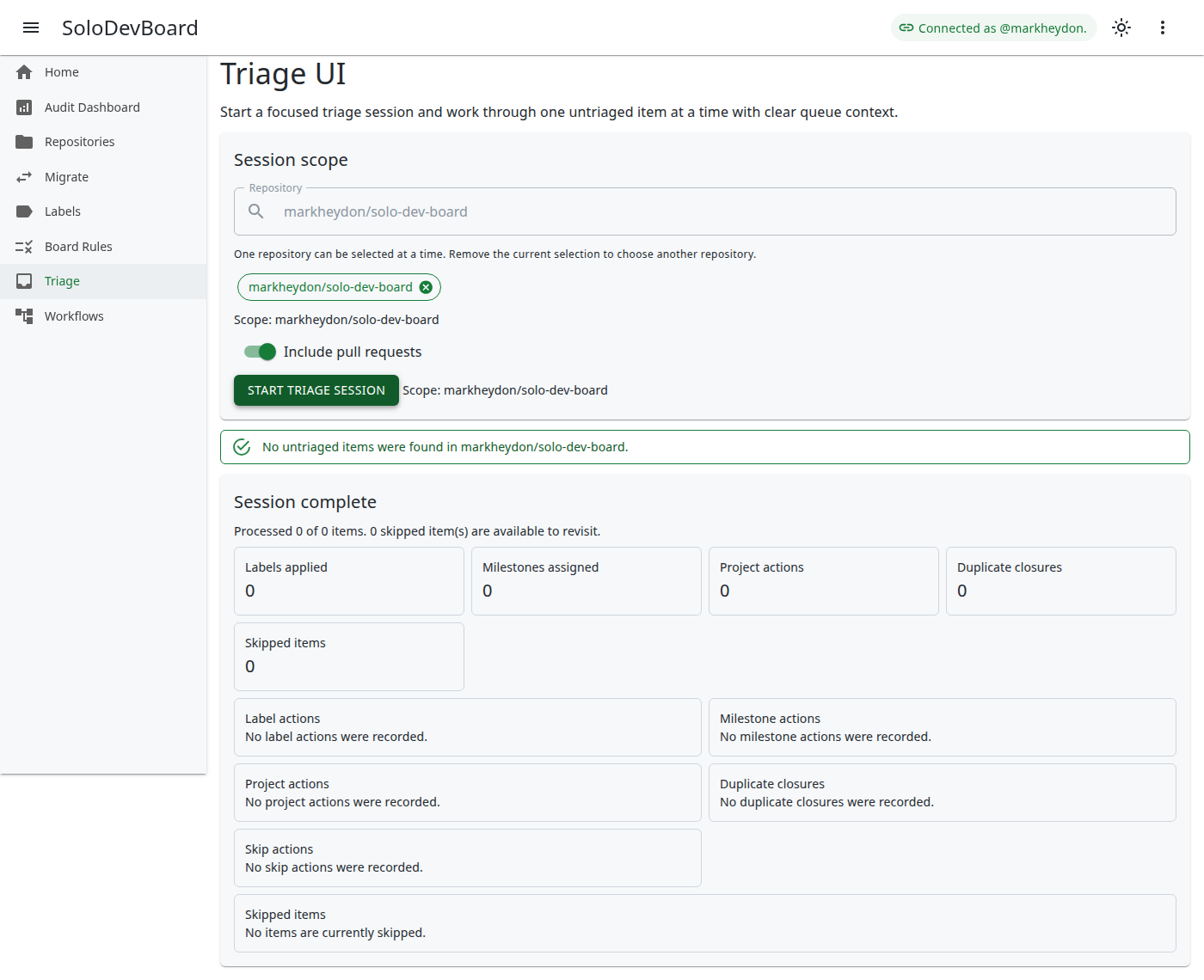
Key features:
- You can start a triage session for one repository at a time.
- The queue includes unlabelled issues, with an option to include unlabelled pull requests. When enabled, both types appear in the same queue.
- Each item in the queue displays a clear item-type indicator: Issue or Pull request.
- The interface shows your current position (e.g., Item 3 of 10), a remaining count, and a progress indicator.
- Use the Triage this item card to choose a disposition (Process, Duplicate, or Skip) and commit with one primary action.
- Progress and session context are always visible, so you know how much work remains.
How to Use
Start a session
Select a repository to start a triage session.
Work the queue
The Triage UI queues all unlabelled issues for that repository. If pull request inclusion is enabled, unlabelled pull requests are also included in the queue.
Act on each item
Review each item in turn, choose a disposition, then commit:
- Process (default): Fill any combination of quick label, milestone, and project board fields, then click Save and next to apply only the filled values and advance. Use Next without saving to advance without GitHub writes.
- Duplicate: Enter a duplicate reference, then click Close as duplicate and next to close the item and advance. Process metadata is not applied on this path.
- Skip: Optionally add a reason, then click Skip and next to defer the item within the session (no GitHub writes). When another disposition is selected, Skip item remains available as a secondary action.
Complete the session
The session completes once all queued items have been processed. Use the progress indicator and session context to track your position and the number of remaining items.
When both issues and pull requests are present, the queue operates in a mixed mode, but you still triage one item at a time using the same action surface.
Save and next with keyboard shortcuts
The action surface uses one primary commit per disposition instead of separate primary buttons for each GitHub write.
- Process: Search for a label in the Quick label field, optionally set milestone and project board fields, then click Save and next (or press Enter / L) to apply filled values and advance.
- Duplicate: Switch to the Duplicate disposition (or press D), enter a reference (
#123or a full URL), then click Close as duplicate and next (or press Enter / L, or D again when the reference is valid). - Skip: Switch to Skip, optionally add a reason, then click Skip and next (or press Enter / L). Press S to skip from Process or Duplicate without changing disposition.
- When the repository exposes a canonical
duplicatelabel, SoloDevBoard applies it as part of duplicate closure. - Keyboard shortcuts do not fire while you are typing in autocomplete or text fields.
- Primary success and failure feedback for triage actions appears as snackbar toasts in the bottom-right corner. Repository load failures appear inline in the session scope region with a retry action. Choose Reload from GitHub in the session scope header to refresh the catalogue and planning options without clearing your repository selection or active session.
Milestones and project boards in one commit
During Process, milestone and project board fields are part of the same metadata form as the quick label:
- Select a milestone from the dropdown (or No milestone to clear an existing assignment when it differs from the current item).
- Optionally select a project board and status; only filled project fields are written on Save and next.
- Partial success stops on the first failed write and surfaces a snackbar; successful writes in that commit are recorded in the session summary.
If GitHub reports linked project boards that cannot be loaded, a warning appears above the project board selector. This commonly happens for private user-owned Projects v2 boards under hosted GitHub App sign-in: GitHub may list the board as linked while the App token cannot read it. Public linked boards still appear in the selector.
read:project scope, or make the project public.Session Completion Summary and Skip/Revisit Workflow
When you complete a triage session, a grouped summary is shown with details for all actions taken during the session. The summary includes:
- Counts for labels applied, milestones assigned, project actions, duplicate closures, and skipped items.
- Per-action detail lists with links back to GitHub where available.
- A Revisit skipped items control when any items were skipped during the session.
Skipped items can be appended back to the queue for another pass without starting a new session.