Planning
Overview
The Planning feature brings a structured, two-mode operating system into SoloDevBoard so you can plan and execute work across your own GitHub repositories from one visual interface.
The system is built around two modes of operation:
- PM Mode (weekly or fortnightly) — Active curation: review your backlog across all repositories, resolve stalled work, and populate your project board with a realistic set of committed items for the next few days.
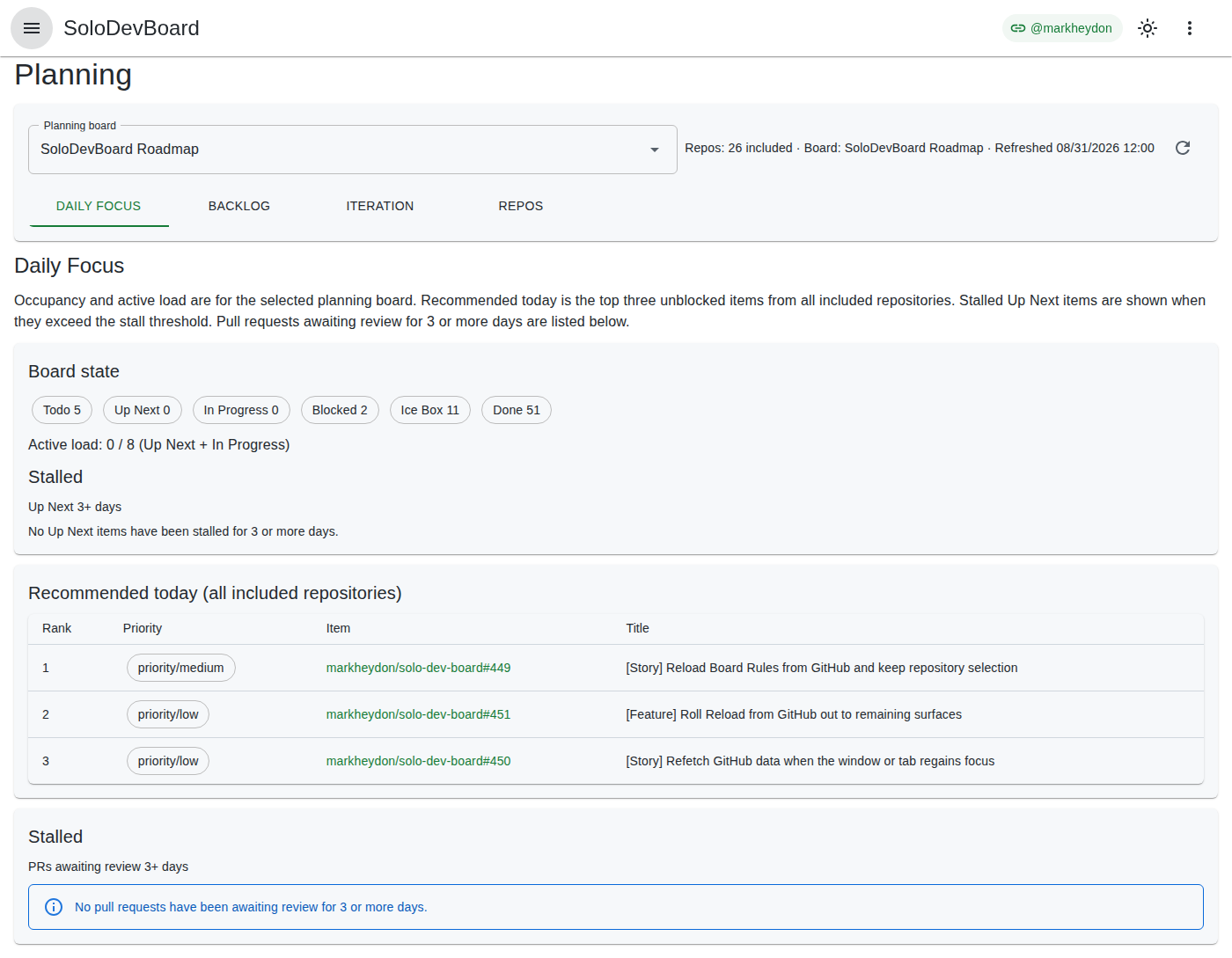
- Work Mode (daily) — Execution: the project board is the single pane of glass. Open it, pick the next item, and get things done. Daily Focus shows occupancy and active load for the selected planning board, stalled Up Next items, the top three unblocked items from all included repositories by default (or from the selected planning board when you opt in), and pull requests that have been waiting on review for the configured Stall days threshold (default 3).
Tabs
| Tab | Route | What it does |
|---|---|---|
| Daily Focus | /planning/daily-focus | Status occupancy chips, active load, stalled Up Next, top-three recommendations (all included repositories by default, or the selected planning board when opted in), and pull requests awaiting review for the configured Stall days threshold. |
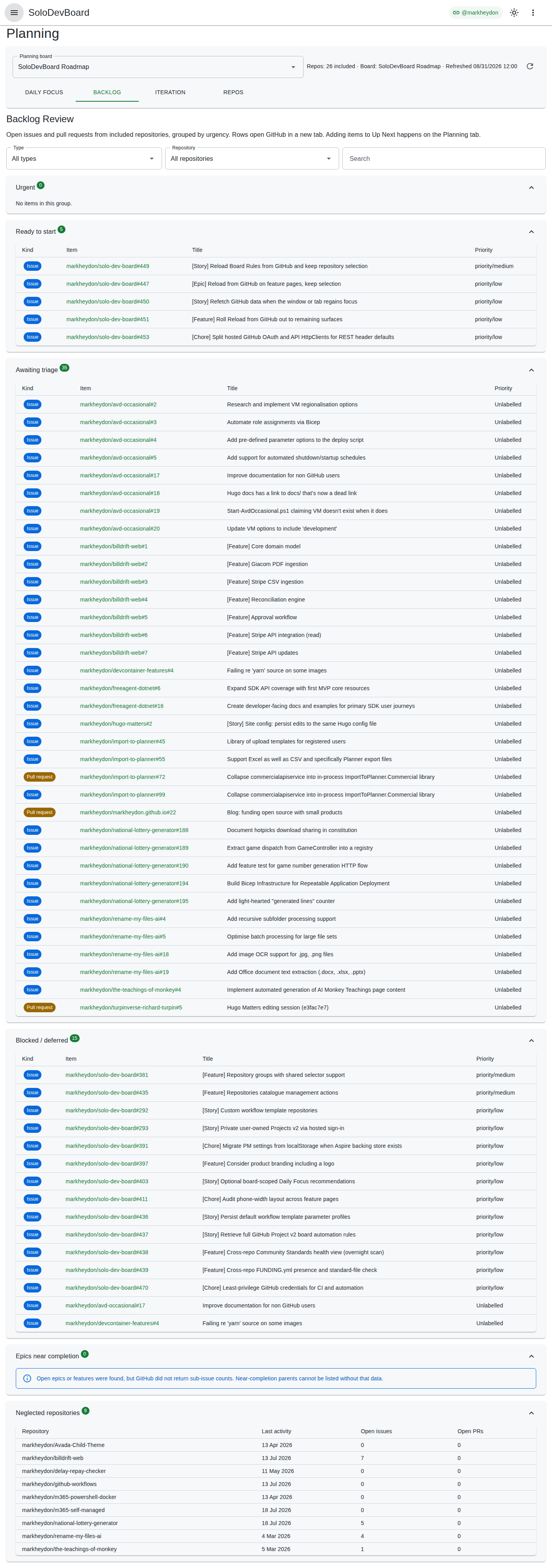
| Backlog | /planning/backlog | Search, type and repository filters, plus Urgent, Ready to start, Awaiting triage, Blocked/deferred, Epics near completion, and Neglected repositories panels. Issue and pull request kind chips appear on grouped rows. Urgent items are omitted from Ready to start. |
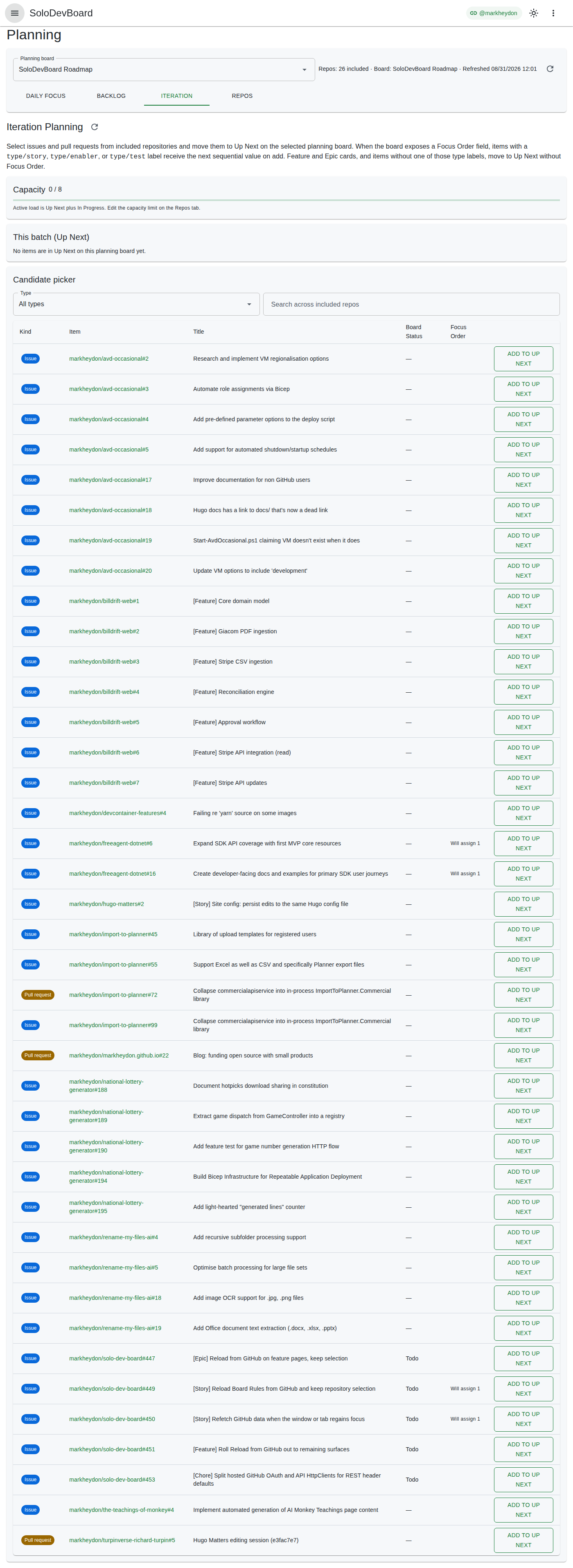
| Iteration | /planning/iteration | Capacity guidance, stalled Up Next resolution gate, Up Next batch list with optional bulk milestone assignment, searchable candidate picker, and Add to Up Next with sequential Focus Order for stories, enablers, and tests. Feature and Epic cards skip Focus Order. |
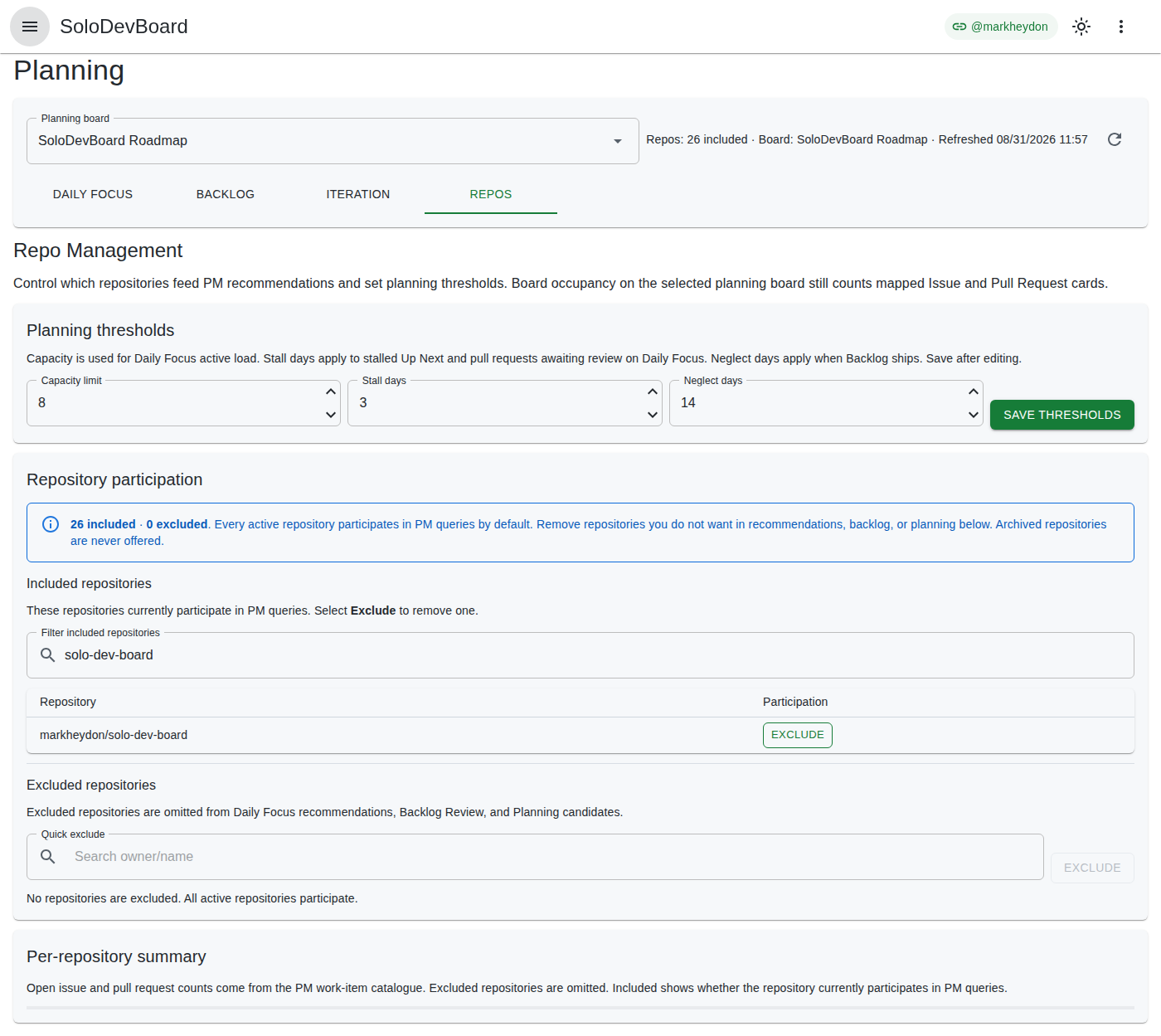
| Repos | /planning/repos | Planning board selection, thresholds, repository exclusions, and per-repository open-work counts. |
| Board setup | /planning/board-setup | Shown when the selected board is missing required Status columns or fields. Lists required fixes and recommended improvements, with Recheck after you update the board in GitHub Projects. |
Open Planning from the Home card or the navigation drawer. The hub redirects to Daily Focus.
Opinionated conventions
Planning is intentionally opinionated about how work is labelled and how a planning board is shaped. You choose which repositories and which Projects v2 board to use; SoloDevBoard does not hard-code a maintainer project or repository.
For best results, align your board and labels with these product conventions:
- SoloDevBoard label taxonomy — prefixes such as
type/,priority/, andstatus/(includingstatus/blockedandstatus/ice-box). The Label Manager SoloDevBoard recommended strategy applies this set. - Status display names — columns matched by name, including
Up Next,In Progress,Blocked, andIce Box(plus review-equivalent names where Daily Focus looks for stalled reviews). - Focus Order — optional Projects v2 number field used when Iteration Planning writes ordered Up Next items.
These conventions are product behaviour, not upstream dogfood. They mirror the published labelling guidance for this project but apply to any GitHub user who adopts the same taxonomy on their own boards.
Daily Focus
Daily Focus is a read-only morning snapshot. Occupancy and active load describe the selected planning board. Stalled Up Next items surface when the stall threshold is reached. Recommended today lists the top three unblocked items from all included repositories by default. Turn on Limit Recommended today to the selected planning board to rank only items on that board instead. Stalled review pull requests show which PRs have been waiting on review for too long.
Accessing
- Open the navigation drawer, or open Planning from Home.
- Select Planning if you used the drawer.
- You land on the Daily Focus tab (
/planning/daily-focus).
Shared chrome on every Planning tab includes:
- Planning board selector — choose a Projects v2 board discovered from your active repositories (same discovery model as Triage and Board Rules).
- Status line —
Repos: N included, selected board title (when chosen), last refreshed time, and a Refresh control to reload board options and the repository catalogue. - Tab strip — Daily Focus, Backlog, Iteration, and Repos. When the selected board is missing Status columns or fields Planning expects, a warning Board setup tab appears at the end of the strip.
- Board setup summary — when issues exist, a collapsible panel above the tab strip lists the first few problems and links to the Board setup tab for the full checklist. Fix the board in GitHub Projects, then open Board setup and select Recheck to confirm the board is ready.
If GitHub reports linked project boards that cannot be read with your current sign-in, a warning appears at the top of the page. This is common for private user-owned Projects v2 boards when you use hosted GitHub App sign-in: GitHub can list the board as linked to a repository while the App token cannot read it (Resource not accessible by integration). Public linked boards still load normally.
read:project scope, or make the project public so hosted sign-in can read it.Until a board is selected, an informational alert points at the Planning board dropdown. Occupancy, stalled Up Next items, and recommendations load as soon as you open Daily Focus when a board is already stored, or as soon as you choose one. Backlog Review and Iteration Planning use the same board selection. Use the Repos tab to edit exclusions and thresholds.
A progress bar at the top of the page shows while planning boards are discovered. Switching tabs does not restart that load.
Board occupancy, active load, and stalled Up Next
After a board is selected, Daily Focus shows:
- Status chips — one chip per Status option discovered on that board (including empty columns), with the item count. Option identifiers are not hard-coded to any one GitHub project.
- Active load —
Up NextplusIn Progressitem counts over the persisted Capacity limit (default 8). - Stalled Up Next — items whose Status name is
Up Nextand whose stall clock is at or beyond the persisted Stall days threshold (default 3, inclusive). Each row shows the title, age in whole days, and an Open link to GitHub. The link text stays Open; each control has a distinct accessible name that includes the item title.
Age prefers Status-changed-at. When that timestamp is missing, Daily Focus uses the item last-updated time and shows a footnote. Items with neither timestamp are omitted from the stalled list.
If no Up Next items meet the threshold, the stalled section still appears with a short none-stalled sentence.
Board occupancy counts mapped Issue and Pull Request cards on the selected board. Notes, draft issues, and redacted items are omitted. Repository exclusions do not change occupancy or stalled Up Next counts; they do apply to the recommended-today list and stalled review pull requests.
If the occupancy catalogue cannot be loaded, an error alert includes Retry. An empty board still lists Status chips at zero and explains that there are no items.
Recommended today
After a board is selected, Daily Focus also lists up to three unblocked work items. By default they come from all included repositories, not only cards on that board. Use the Limit Recommended today to the selected planning board switch to rank only items on the selected planning board instead. Board occupancy and active load are unaffected by this option.
Ranking rules (both scopes):
- Items labelled
status/blockedorstatus/ice-boxare omitted. - Items whose board Status is Blocked, Ice Box, or In Progress are omitted.
- Remaining items are ranked
priority/critical, thenpriority/high,priority/medium,priority/low, then unlabelled, and then by most recently updated. - Each row shows rank, a priority chip, an
owner/name#numberlink that opens GitHub in a new tab, and the title.
When the board-scoped option is on, only items that appear on the selected planning board are eligible. If fewer than three board items qualify, Daily Focus shows the available rows and an informational shortfall message rather than backfilling from off-board repositories.
Excluded repositories (see Repo Management) are omitted from this list. Items already in Up Next can still appear so you know what is queued.
If no unblocked items remain, an informational alert explains that there is nothing to recommend today. If every included repository fails to load, a separate error alert includes Retry rather than an empty list. If some repositories fail but others succeed, Daily Focus still ranks the remaining items and shows a warning with Retry. Occupancy can still show on its own while recommendations continue to load. GitHub 404 or 410 responses for issues or pull requests on a repository that is already in the catalogue (for example a profile README repository whose /pulls endpoint is not found) are treated as no items, not as a load failure.
Stalled review pull requests
After a board is selected, Daily Focus also lists pull requests that have been waiting on review for the configured Stall days threshold (default 3, inclusive).
Detection uses two modes:
- Board column — if the selected board has an In Review Status, or a clearly equivalent name such as Waiting on review or Code Review, SoloDevBoard uses time in that column (Status-changed time when GitHub provides it).
- Pending review fallback — if there is no such column, it uses open, non-draft pull requests with a pending review (
REVIEW_REQUIREDor requested reviewers) that are at least the stall threshold old.
Each row shows the repository (owner/name), pull request number, age in days, and an Open link to GitHub. Excluded repositories are omitted from this list.
If no pull requests meet the threshold, an informational alert says so. If the list cannot be loaded, an error alert includes Retry.
Backlog Review
Backlog Review is a read-only weekly pass across included repositories. It groups open issues and pull requests into urgency panels. Rows open GitHub in a new tab. Adding work to Up Next happens on the Iteration tab.
Accessing
- Open Planning.
- Select the Backlog tab (
/planning/backlog).
The same shared chrome described under Daily Focus appears on this tab. Until a board is selected, an informational alert points at the Planning board dropdown.
Filters
Above the panels:
- Type — All types, Issues, or Pull requests.
- Repository — All repositories, or one
owner/namevalue from the loaded catalogue. - Search — Matches title, repository name, or item number.
Filters apply in the browser after the catalogue loads. They do not reload GitHub.
Groups
After a board is selected, expansion panels list:
- Urgent — items labelled
priority/highorpriority/critical. - Ready to start — unblocked items (
status/blockedandstatus/ice-boxabsent, board Status not Blocked or Ice Box) that are not already Up Next or In Progress. Items already listed under Urgent are omitted here. - Awaiting triage — open issues or pull requests missing a
type/orpriority/label. - Blocked / deferred — items labelled
status/blockedorstatus/ice-box, or whose joined board Status is Blocked or Ice Box. - Epics near completion — open epics or features whose sub-issues are all closed (requires GitHub sub-issue counts).
- Neglected repositories — included repositories with no open issue or pull request activity within the persisted Neglect days threshold (default 14).
Each grouped row shows an Issue or PR chip, a owner/name#number link that opens GitHub in a new tab, the title, and the priority label when present.
An item can appear in more than one panel (for example an urgent item that is also blocked). Each panel header includes a count. Empty panels say there are no items in that group.
If there are no open issues or pull requests in included repositories, an informational alert says so. If the current filters hide every row, a separate alert says no items match. If every included repository fails to load, an error alert includes Retry. If some repositories fail but others succeed, grouping still proceeds and a warning lists the failed repositories with Retry. When GitHub does not return sub-issue counts, Epics near completion explains that near-complete parents cannot be listed.
Iteration Planning
Iteration Planning populates the selected planning board’s Up Next column from open work across included repositories. It also shows capacity against your limit, blocks new adds while stalled Up Next items remain, and can assign a shared milestone to selected batch items.
Accessing
- Open Planning.
- Select the Iteration tab (
/planning/iteration).
The same shared chrome described under Daily Focus appears on this tab. Until a board is selected, an informational alert points at the Planning board dropdown.
Capacity
When a board is selected, Iteration shows Capacity as active load over the persisted Capacity limit (default 8), with a progress bar.
- Active load is Up Next plus In Progress on the selected board (same definition as Daily Focus).
- When load is at or above the limit, a warning caption appears and the bar uses a warning colour.
- Edit the limit on the Repos tab under Planning thresholds.
Capacity is a soft ceiling. Choosing Add to Up Next when the next item would exceed the limit opens a confirmation dialog (Exceed capacity limit?). Add anyway continues; Cancel leaves the board unchanged.
Stall gate blocks Add to Up Next
If any Up Next item is stalled for the configured Stall days threshold (same inclusive clock as Daily Focus), Iteration shows a single error alert and a Stalled Up Next table. Add to Up Next stays disabled until every stalled item is handled. This stall gate is separate from capacity: a full capacity meter does not disable Add on its own.
The error alert states how many items are stalled and names the four resolution actions. The Candidate picker stays visible with a short pause line explaining that Add is paused until stalled Up Next is cleared.
Each stalled row shows owner/name#number, title, age, and four actions:
| Action | Effect |
|---|---|
| Re-commit | Clears the stall clock by refreshing the item’s Status touch so the stall age restarts while the item stays in Up Next. |
| Mark Blocked | Moves the card to Blocked and applies the status/blocked label where appropriate. |
| Ice Box | Moves the card to Ice Box and applies the status/ice-box label where appropriate. |
| Remove | Returns the item from Up Next (clears Focus Order when present). |
Success and failure snackbars confirm each resolution. Resolving a stalled row updates the page immediately so you can work through the list without waiting for a full reload. Use the Refresh control on the page heading (or in the Stalled Up Next section) when you want to reload candidates, capacity, and Up Next from GitHub.
This batch (Up Next)
When a board is selected, the page lists items whose board Status is Up Next, ordered by Focus Order then title. Each row shows a selection checkbox, an Issue or PR chip, owner/name#number, the title, and a Focus Order chip when a value is assigned.
The introduction at the top of the page explains when Focus Order applies. Rows without a chip have no Focus Order (for example Feature or Epic cards, or items missing a type/story, type/enabler, or type/test label).
If the board does not expose a Focus Order field, a warning in this section explains that story, enabler, and test cards can still move to Up Next without Focus Order.
If the column is empty, an informational sentence explains that no items are in Up Next yet.
When active load is at or above your capacity limit and there are no stalled Up Next items, a caption in this section explains that you can still add items after confirming. Capacity remains a meter, not a hard lock.
Assign milestone to selected
Below the Up Next table, Assign milestone to selected lists milestones that exist on every repository represented by the checked batch items.
- Select one or more Up Next rows.
- Choose a milestone title from the dropdown (or see No shared milestones on selected repos when none overlap).
- Select Apply.
Assignment skips repositories that do not have that milestone title and summarises applied, skipped, and failed items in a snackbar. Bulk milestone is optional; you can plan without assigning one.
Candidate picker
Below the batch, a searchable list shows open issues and pull requests from included repositories that are not already Up Next or In Progress on the board (and not parked in Blocked or Ice Box).
- Search matches title, repository name, or item number.
- The Type dropdown filters the list (
All types, Issues, or Pull requests). - When stalled Up Next items exist, a pause line explains that Add to Up Next is paused until they are cleared. Disabled Add buttons show the same reason in a tooltip.
- Each row shows an Issue or PR chip,
owner/name#number, the title, the current board Status when the item is already on the board, an optional Will assign hint when the next Focus Order would apply on add, and Add to Up Next.
Choosing Add to Up Next:
- Confirms if the add would exceed capacity (see Capacity).
- Adds the item to the board when it is not already a card (same add-item flow as Triage).
- Sets board Status to Up Next (matched by option name, case-insensitive).
- Assigns the next sequential Focus Order when the item has a
type/story,type/enabler, ortype/testlabel and the board exposes a Focus Order field. Feature and Epic cards skip Focus Order; story, enabler, and test cards still move to Up Next when the field is unavailable.
A success snackbar confirms the add and the page updates immediately: the item moves from the candidate picker into This batch (Up Next), capacity increments, and Focus Order chips refresh when assigned. Use Refresh when you want to reload the full view from GitHub. Failure snackbars cover GitHub API errors and missing board fields. If some repository catalogues fail but others succeed, a warning lists the failed repositories while candidates from the rest still load.
Repo Management
Repo Management controls which repositories and which Projects v2 board participate in planning operations. Settings persist in your browser (see Configuration).
Accessing
- Open Planning.
- Select the Repos tab (
/planning/repos).
The same shared chrome described under Daily Focus appears on this tab.
Select a planning board
- Open the Planning board dropdown in the shared chrome.
- Choose a board title from the list (boards are discovered across active, non-archived repositories).
- The selection is saved automatically.
Until a board is selected, an informational alert explains that other tabs need a board. You can still edit Repo Management settings below.
Board occupancy on Daily Focus counts mapped Issue and Pull Request cards. Recommendations, stalled Up Next items, stalled review pull requests, Backlog Review, and Iteration candidates honour repository exclusions.
Set planning thresholds
Under Planning thresholds:
| Field | Default | Purpose |
|---|---|---|
| Capacity limit | 8 | Denominator for Daily Focus and Iteration active load, and the soft ceiling for the Iteration capacity confirmation. |
| Stall days | 3 | Inclusive days before Daily Focus and Iteration treat an Up Next item as stalled, and before Daily Focus treats a pull request awaiting review as stalled. |
| Neglect days | 14 | Days before a repository is treated as neglected in Backlog Review. |
- Adjust the numeric fields.
- Select Save thresholds.
Manage repository participation
The Repository participation section shows how many repositories are included and excluded. Every active repository participates in planning queries by default. Archived repositories are never offered.
Excluded repositories are omitted from Daily Focus recommendations, stalled review pull requests, Backlog Review, and Iteration candidates. Board occupancy and stalled Up Next counts on the selected planning board still include cards from excluded repositories when those cards are on the board.
Included repositories lists active owner/name values that currently participate:
- Optionally narrow the list with Filter included repositories.
- Select Exclude on the row you want to remove.
Quick exclude under Excluded repositories offers the same action via search:
- Type an
owner/namevalue in Quick exclude. - Select Exclude.
To include a repository again:
- Find the repository in the Excluded repositories list.
- Select Include again.
Exclusions persist immediately in browser storage.
Per-repository summary
The Per-repository summary table lists included repositories only:
| Column | Meaning |
|---|---|
| Repository | Full owner/name. |
| Open issues | Open issues in the PM work-item catalogue. |
| Open PRs | Open pull requests in the same catalogue. |
| Last activity | Latest catalogue item update, or the repository update time when there are no open items. |
| Included | Always Yes in this table, because excluded repositories are omitted. |
Counts are aggregated in memory from the cross-repo work-item catalogue (the same read model Daily Focus recommendations and Backlog Review use). There is no separate GitHub count or search endpoint. Opening Repo Management still loads that catalogue from GitHub (issues, pull requests, review metadata, and sub-issue summaries) when it runs. Daily Focus occupancy uses the project board catalogue, so this visit is often the first work-item catalogue load rather than a reuse of an already-fetched snapshot.
If some repositories fail to load, a warning lists them. Failed repositories are omitted from the table so unavailable counts are not shown as zero open work. Retry reloads the catalogue. A complete load failure shows an error with Retry.
Use this table to see load at a glance before excluding a repository or planning the next iteration.
Configuration
Planning preferences are stored in browser localStorage on the device you use (same pattern as theme preference). There is no server-side database for these settings.
Persisted fields:
| Setting | Description |
|---|---|
| Planning board node id | GitHub GraphQL node id for the selected Projects v2 board. |
| Excluded repositories | owner/name values omitted from planning queries. |
| Capacity limit | Active load ceiling for Daily Focus and Iteration (default 8). |
| Stall days | Stall threshold for Up Next and review pull requests (default 3). |
| Neglect days | Repository neglect threshold for Backlog Review (default 14). |
Clearing site data for SoloDevBoard resets Planning settings to defaults. Settings do not sync across browsers or devices.
There are no appsettings.json entries for Planning user preferences.