Label Manager
Overview
The Label Manager provides a unified interface for creating, editing, deleting, and synchronising GitHub labels across multiple repositories. Rather than managing labels repository by repository through the GitHub web interface, you can define a canonical label taxonomy once and push it to all relevant repositories.
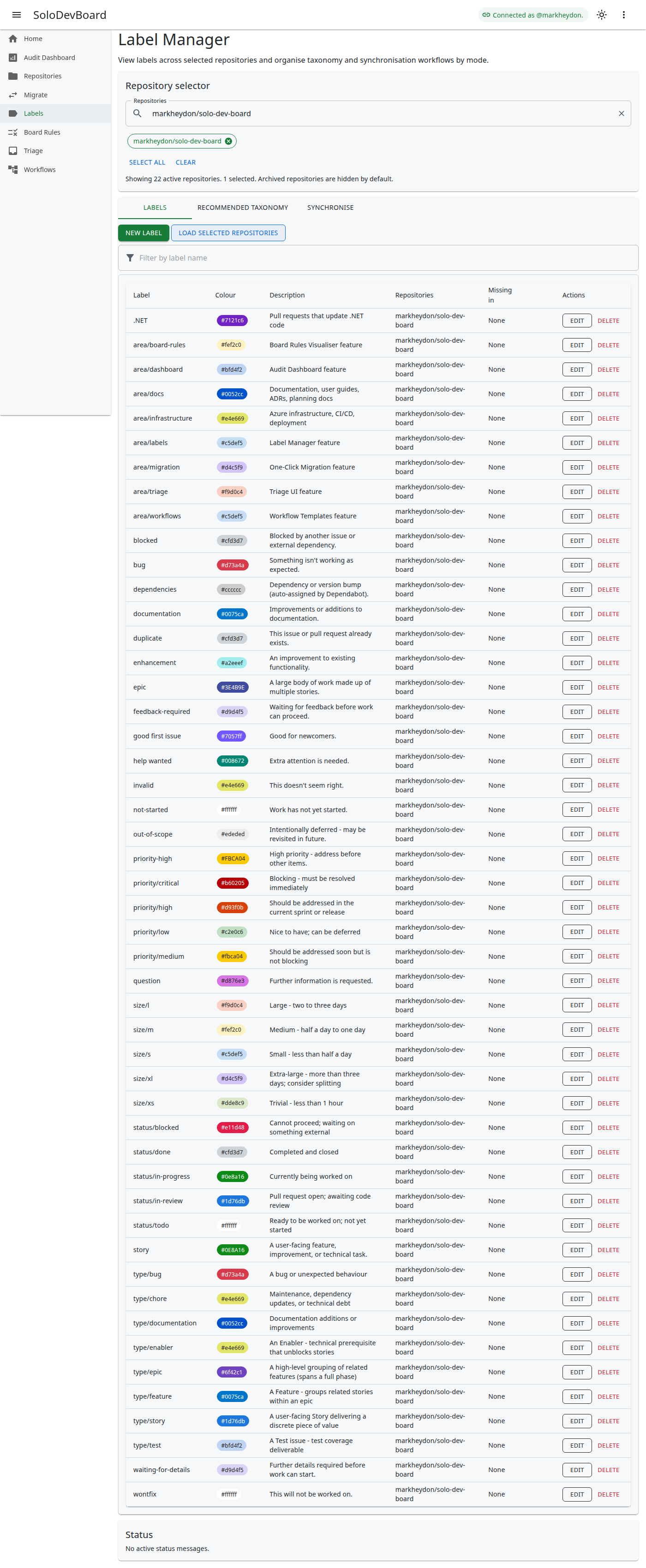
Key goals of the Label Manager:
- Create labels across multiple repositories in one operation.
- Edit existing labels across selected repositories.
- Delete labels from selected repositories safely.
- Identify gaps where labels are missing.
How this differs from One-Click Migration
Label Manager is the day-to-day tool for governing labels across repositories. It is not intended to replace One-Click Migration.
- Use Label Manager when labels are the thing you want to manage.
- Use Label Manager when you need repeated operational work such as bulk CRUD, taxonomy rollout, or label re-synchronisation.
- Use One-Click Migration when the goal is to copy repository configuration from a source repository to one or more target repositories.
- Use One-Click Migration when you want labels to move together with other artefacts such as milestones and project board Status columns.
One-Click Migration covers labels, milestones, and Projects v2 Status columns in a preview-first workflow. Label Manager remains the specialised tool for ongoing label maintenance.
Example Use Cases
- You want to add a new
priority-highlabel to several repositories at once. Use Label Manager. - You want to change an existing label’s name, colour, or description across repositories. Use Label Manager.
- You want to apply a recommended label taxonomy to selected repositories. Use Label Manager.
- You want a new repository to inherit the labels and milestones from an existing repository in a single guided workflow. Use One-Click Migration.
How to Use
The Label Manager page uses a tabbed layout to organise label management workflows. The repository selector is positioned above the tabs, allowing you to choose one or more repositories before switching between workflows.
Load failures and retry actions appear at the top of the repository selector or Labels tab. Choose Reload from GitHub in the repository selector header to refresh the catalogue and loaded labels without clearing your repository, strategy, or synchronisation selections. Transient operation outcomes (create, update, delete, and synchronisation summaries) appear as snackbar notifications.
View, create, edit, and delete labels across the selected repositories. Use the consolidated label view and bulk CRUD operations here. Filter by label name, and use the New label button to add labels. Row-level actions allow editing and deleting existing labels.
Bulk delete on the Labels tab
Select one or more label rows in the grid, then choose Delete on the action strip. The bulk delete action is disabled until at least one row is selected and repositories are in scope.
- A confirmation dialog asks Are you sure? and lists each selected label with the repositories where it will be removed.
- Choose No or cancel to leave labels and your selection unchanged.
- Choose Yes, delete to remove each selected label from every selected repository that currently contains it. Repositories that do not have a label are skipped for that name.
- If GitHub returns an error for one label or repository, SoloDevBoard continues with the remaining items and reports per-item failures.
- While the batch is running, duplicate submissions are disabled and an in-progress indicator is shown.
Per-row Delete remains available for deleting a single label name through the existing repository-scoped dialog.
The create and edit dialogs include:
Label nameinput.- Colour picker for choosing a valid hexadecimal colour value.
- Optional description input.
- Repository selection controls scoped to valid repositories.
Applying recommended taxonomy
You can apply a recommended label taxonomy to selected repositories using a preview and confirm workflow.
Select repositories
Select one or more active repositories in the repository selector.
Choose a strategy
Choose a recommended strategy.
Optional strict clean-up
Optionally enable Remove labels outside taxonomy (off by default) when you want a strict clean-up.
Preview and confirm
Select Preview to review proposed changes per repository. Confirm or cancel before any changes are applied. After Confirm, the apply button shows a loading state and an in-progress indicator until the operation finishes.
Review the summary
Review the per-repository summary after apply completes.
Current built-in strategies:
SoloDevBoardstrategy — portable workflow prefixes (type/,priority/,status/, andsize/). It does not includearea/*labels; those describe SoloDevBoard’s own feature map on this repository and are not exported to other repositories.GitHub defaultstrategy.
Remove labels outside taxonomy
By default, recommended taxonomy apply only creates and updates labels so existing repository labels are left alone. Turn on Remove labels outside taxonomy when you want preview and apply to also delete every label whose name is not in the selected strategy (case-insensitive match).
When that option is on, a nested Keep area/* labels checkbox appears (on by default). Those labels are listed as kept (area prefix) in preview and are not deleted unless you untick the nested option.
bug, enhancement, and similar), Dependabot labels such as dependencies, and any other non-strategy label are removed when listed. Preview first.When remove-outside is on:
- Preview summary counts include Delete, alongside Create, Update, and Skip.
- Preview lists Labels to delete for each repository.
- When Keep
area/*labels is on, excluded area labels are summarised by count only (no per-label table); they are not deleted. - Apply removes listed deletes after you confirm, then reports a deleted count per repository.
- If a label cannot be deleted (for example it is still applied to open issues or pull requests), SoloDevBoard shows a clear per-label error and continues with the rest of the batch.
Leave remove-outside off for routine taxonomy rollout when you only want to add or correct canonical labels.
Preview and apply summary
The preview shows the labels that will be created, updated, deleted (when the option is on), and skipped for each selected repository. Labels that already match the selected strategy exactly are skipped, and no redundant API update call is made for those labels.
The apply summary is shown per repository and includes created, updated, deleted, and skipped counts. If one repository fails due to a GitHub API error, the summary marks that repository with an error while still showing successful outcomes for other repositories.
Strategies are built in to the application. Custom strategy files that you maintain outside the shipped catalogue remain a later increment.
Synchronise Labels Workflow
The Label Manager allows you to synchronise labels from a source repository to one or more target repositories, ensuring consistent taxonomy across your projects.
Selecting Source and Target Repositories
- Choose a source repository whose labels will be used as the reference.
- Select one or more target repositories to receive synchronised labels.
Preview Before Apply
- After selecting repositories, initiate the synchronisation preview.
- The preview displays, for each target repository, which labels will be created, updated, deleted, or skipped.
- Use Keep
area/*labels (on by default) to retain target labels whose names start witharea/instead of deleting them as extras. Preview summarises how many are excluded; it does not list each name. - Skipped labels are those already matching the source exactly; no action is taken for these.
Duplicate Submission Prevention
- While synchronisation is running, the apply button is disabled to prevent duplicate submissions.
- An in-progress indicator is shown until the operation completes.
Summary and Partial Failure Reporting
- After synchronisation, a summary is shown for each target repository.
- Partial failures (such as API errors affecting only some labels) are reported per repository, with guidance for retry or manual intervention.
This workflow ensures you can preview all changes before applying, avoid redundant updates, and receive clear feedback on the outcome of each synchronisation operation.