Board Rules Visualiser
Board Rules Visualiser
Partially Available
Scope note — Repository and supported board selection, column and transition visualisation, rule inspection warnings, and compare mode are available now. Full automation-rule retrieval from GitHub remains a later slice.
Overview
The Board Rules Visualiser displays the board states and supported transitions for a GitHub Project v2 board. It helps you understand how issues and pull requests move between columns without reading raw configuration payloads.
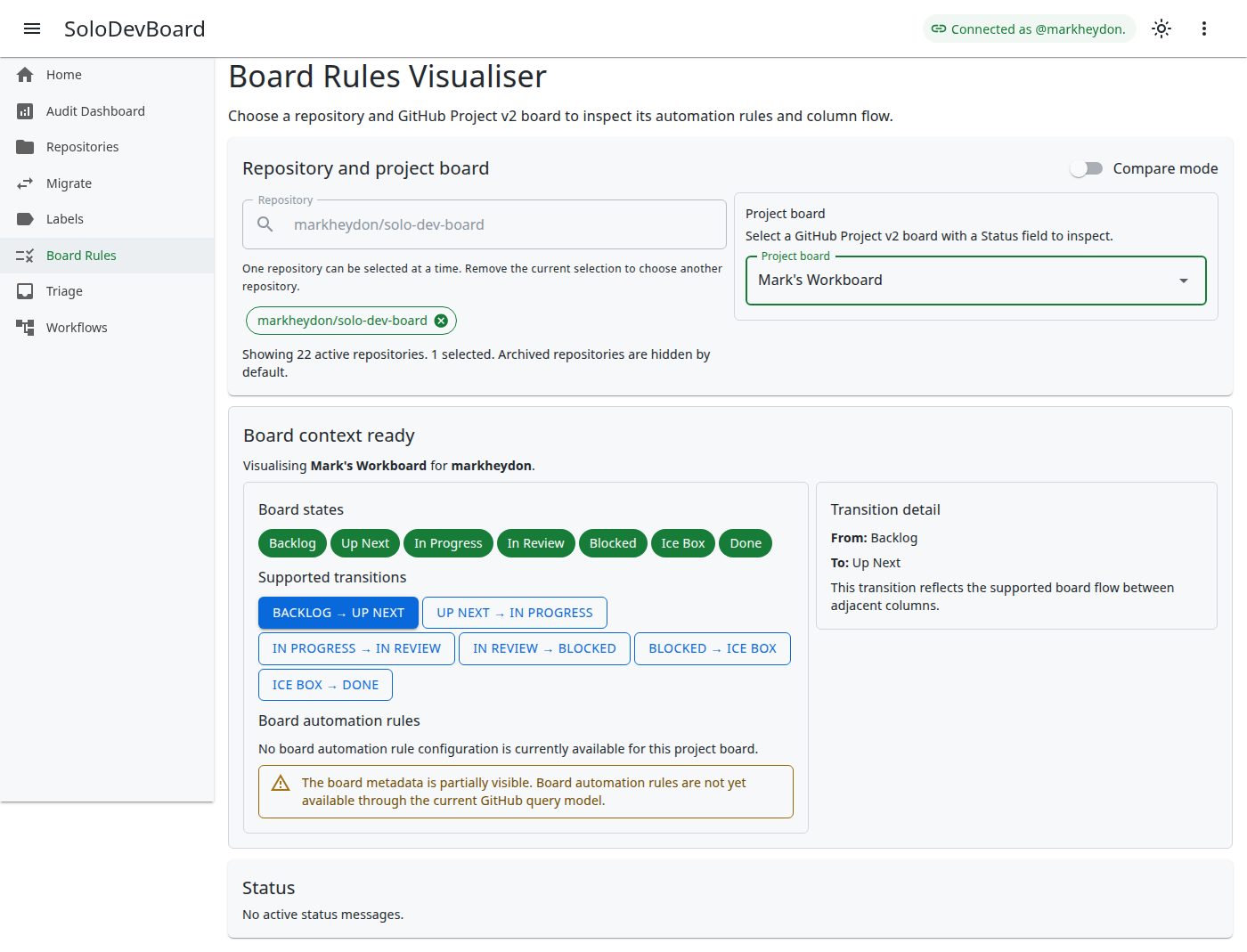
Key goals of the Board Rules Visualiser:
- Make project board states and supported transitions visible and understandable at a glance.
- Help diagnose board flow issues by surfacing the supported column progression for a selected board.
- Compare Status columns across two boards. Copying Status column structure between repositories is a separate One-Click Migration workflow.
How to Use
Select a repository and project board
- Open Board Rules Visualiser from the navigation menu or dashboard.
- Use the repository search box to choose one active repository. SoloDevBoard reuses the same repository selector pattern as Label Manager and Migration.
- After a repository is selected, SoloDevBoard loads GitHub Project v2 boards linked to that repository.
- Choose a supported project board from the Project board dropdown. Supported boards must expose a Status field.
- When a board is selected, the visualisation area displays board states and the supported transitions between adjacent columns.
What you can do now
- View board states derived from the selected Project v2 board’s Status field.
- Inspect the supported adjacent transitions between board columns.
- See a warning when the board metadata is only partially visible.
- Click rule nodes to inspect the full rule name, trigger and action configuration.
- See potential rule conflicts highlighted when duplicate triggers or incomplete rule details are present.
- Enable Compare mode to select a second repository and project board, then review column, rule, and visibility differences side by side.
- Choose Reload from GitHub in the selector header to refresh the repository catalogue and refetch project boards without clearing your repository or comparison selections. The control stays available after load errors and is disabled only while a reload is running.
- Reload repositories or project boards if GitHub API requests fail.
Compare two repositories
- Turn on Compare mode in the repository selector region.
- Select the primary repository and project board as usual.
- Choose a comparison repository and supported project board in the comparison selector region.
- Review the side-by-side summaries and the differences panel when both boards are loaded.
- Turn off compare mode to return to single-board inspection without losing your primary selection.
What is coming later
- Full rule inspection for board automation rules and trigger conditions directly from GitHub.
- Deeper warning details for conflicting or unsupported rule patterns beyond the current heuristic checks.
Empty and unsupported states
- No repository selected: The visualisation area prompts you to choose a repository and project board.
- No supported boards: If the repository has no GitHub Project v2 board with a Status field, SoloDevBoard explains why the visualiser cannot continue and does not show the diagram state. Use Try again after you add a Status field on GitHub; your repository selection is kept.
- Reload from GitHub: Use Reload from GitHub in the selector header to bust the repository catalogue cache and refetch project boards while keeping your repository and comparison selections. It remains available when the catalogue fails to load and is disabled only while a reload is in progress.
- Some linked boards inaccessible: If GitHub reports more linked project boards than SoloDevBoard can load, a warning explains how many could not be read. This commonly happens for private user-owned Projects v2 boards under hosted GitHub App sign-in: GitHub may list the board as linked while the App token cannot read it. Public linked boards still load. Use PAT mode with the
read:projectscope, or make the project public.
Private user-owned Projects v2 boards often need PAT mode with
read:project, or a public project, when hosted GitHub App sign-in cannot read them.- Loading: Progress indicators appear in the repository selector, project board selector, or comparison selector sections while data is loading. Reload from GitHub and Try again show section-scoped loading in the board selector areas without hiding your repository pickers.
- Errors: If GitHub cannot be reached, an error message appears at the top of the affected section (repository selector, project board selector, or visualisation area) with a retry action.
Last updated on