Actions Templates
Overview
The Actions Templates feature allows you to browse, apply, and customise GitHub Actions workflow templates across your repositories, all from within SoloDevBoard. Rather than manually copying YAML files between repositories, you can manage templates centrally and push them where needed.
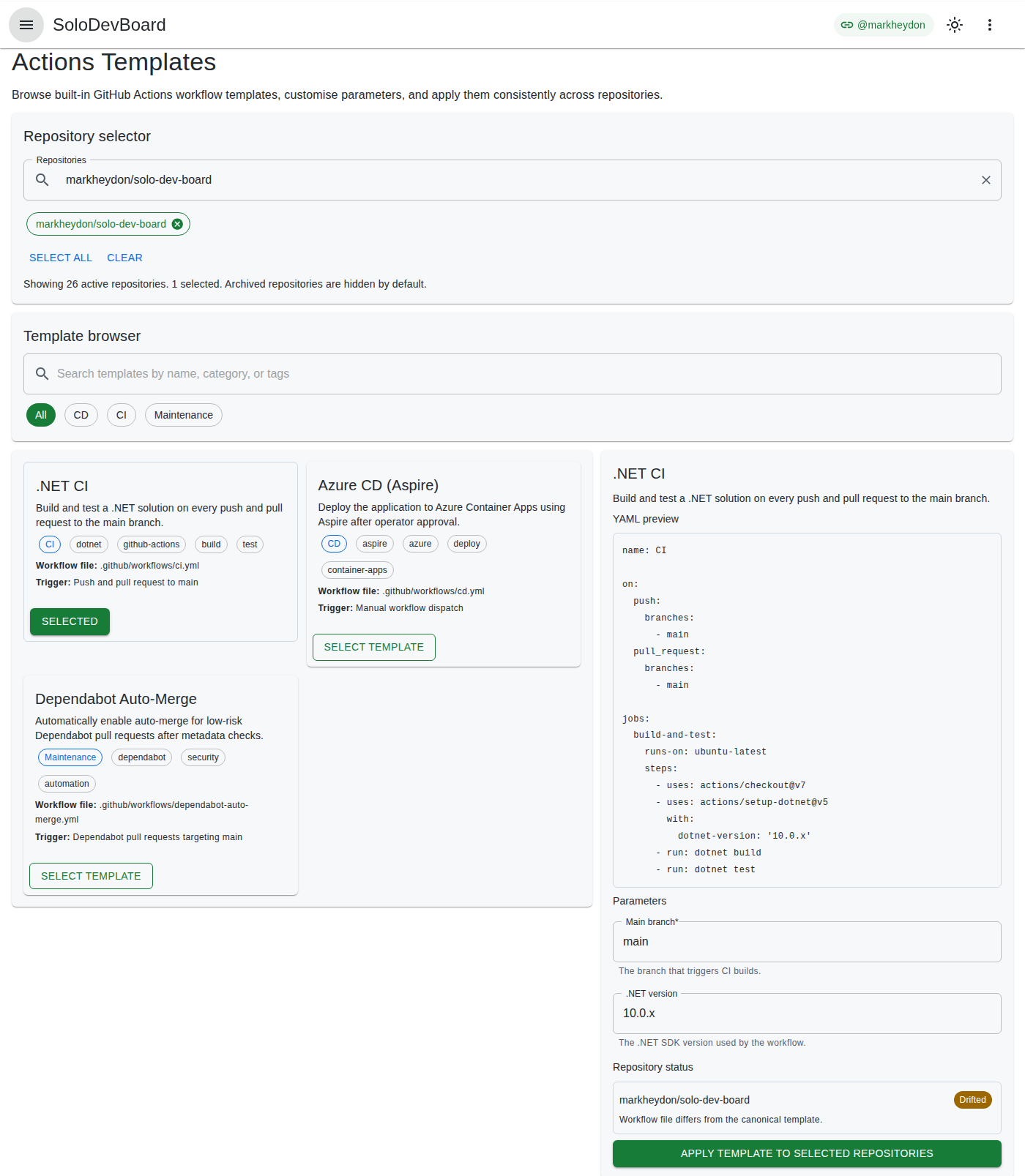
Key goals of Actions Templates:
- Provide a library of reusable GitHub Actions workflow templates suited to common .NET development patterns.
- Load additional workflow YAML from one GitHub repository you maintain.
- Allow templates to be parameterised and customised per repository before being applied.
- Track which repositories have a given template applied and whether they are up to date.
How to Use
Browse built-in templates
- Open Actions Templates from the navigation menu or the app home page.
- Select one or more target repositories using the repository selector at the top of the page. Choose Reload from GitHub to refresh templates and repository statuses without clearing your template or repository selections.
- Review the built-in template cards for common .NET workflows such as CI, Azure CD (Aspire), and Dependabot auto-merge.
- Use the search field to filter templates by name, category, or tag.
- Select a category chip (for example CI or CD) to narrow the list.
- Select a template card to open the detail panel.
Each template card shows:
- Template name and description.
- Source badge (Built-in or the custom
owner/namerepository). - Category and tags.
- Target workflow file path.
- Trigger summary describing when the workflow runs.
Load custom template repositories
The apply Repository selector at the top of the page is independent of the custom source. Custom templates always load from one owner/name at a time.
- In the Custom template source section, select a Source repository from your catalogue, or enter a GitHub repository in
owner/nameformat when it is not in your list. - Selecting a catalogue repository fills the manual field with that
owner/namebut does not load templates until you select Load templates. - Select Load templates to fetch workflow YAML from the top level of
.github/workflowsin that repository (*.ymland*.yamlonly; nested folders are not scanned). - Custom templates appear in the same card grid as built-ins, each with a source badge showing the repository you loaded.
- SoloDevBoard remembers the last-used source in your browser. On your next visit it pre-selects the catalogue repository when it is still in your list, otherwise it pre-fills the manual field, shows a last-used caption, and loads that catalogue automatically.
If the apply catalogue cannot be loaded, the source repository selector is hidden and you can still type an owner/name and select Load templates.
Built-in templates always remain visible. If the source is invalid, inaccessible, or has no workflow files, a clear message is shown and you can continue using built-ins.
Custom YAML may include {{token}} placeholders. When you open a custom template, each unique token becomes a required parameter field labelled with the token name.
Customise template parameters
- With a template selected, review the YAML preview in the detail panel.
- Adjust parameter fields such as branch names, .NET versions, or deployment environment names.
- Required parameters must be completed before the apply action is enabled.
Parameter values are used to render the workflow file that will be written to each target repository.
Apply a template to repositories
- Select the repositories that should receive the workflow file.
- Confirm parameter values and review repository status badges in the detail panel.
- Select Apply template to selected repositories.
After you apply a template, an Apply results panel appears below the template detail panel with per-repository outcomes, including created, updated, skipped, and failed results. Partial failures are reported clearly so you can retry affected repositories.
Review repository status and drift
When a template and repositories are selected, the detail panel shows workflow status for each repository:
- Not applied — the workflow file is missing.
- Applied — the workflow file matches the rendered template.
- Drifted — the workflow file exists but differs from the canonical template.
Drift detection is informational and does not block browsing or previewing templates. Review drift warnings before applying if you need to preserve local customisations.
What is coming later
- Persisted default parameter profiles so common values can be reused across apply runs without re-entering them each time.
Configuration
Current behaviour:
- Built-in templates are always available.
- One additional GitHub
owner/namesource can be loaded per session (catalogue selector or manual field). The last-used source is remembered in browser storage only. - Parameter values are entered per apply run in the UI.
- There are no
appsettings.jsonentries specific to this feature.